Logo
  • Home
  • Online Manual
  • Controller Tester
  • Art Template
  • Support
HomeOnline ManualController TesterArt TemplateSupport
  • Intro
  • 01. Get Started
  • 02. Switch Input Modes
  • 03. Hotkeys
  • 04. Swap Keycaps
  • 05. Add Custom Decals
  • 06. Change Key Mapping
  • 07. Add Macros
  • 08. SODC Rules
  • 09. Update Firmware

Table of Contents

  • Intro
  • 01. Get Started
  • 02. Switch Input Modes
  • 03. Hotkeys
  • 04. Swap Keycaps
  • 05. Add Custom Decals
  • 06. Change Key Mapping
  • 07. Add Macros
  • 08. SODC Rules
  • 09. Update Firmware

Update Firmware

Switching Input Modes for Different Devices

1Step 1 - Reset the Firmware

1.1 Download the flash_nuke.uf2 file on your PC.

1.2 Unplug your device.

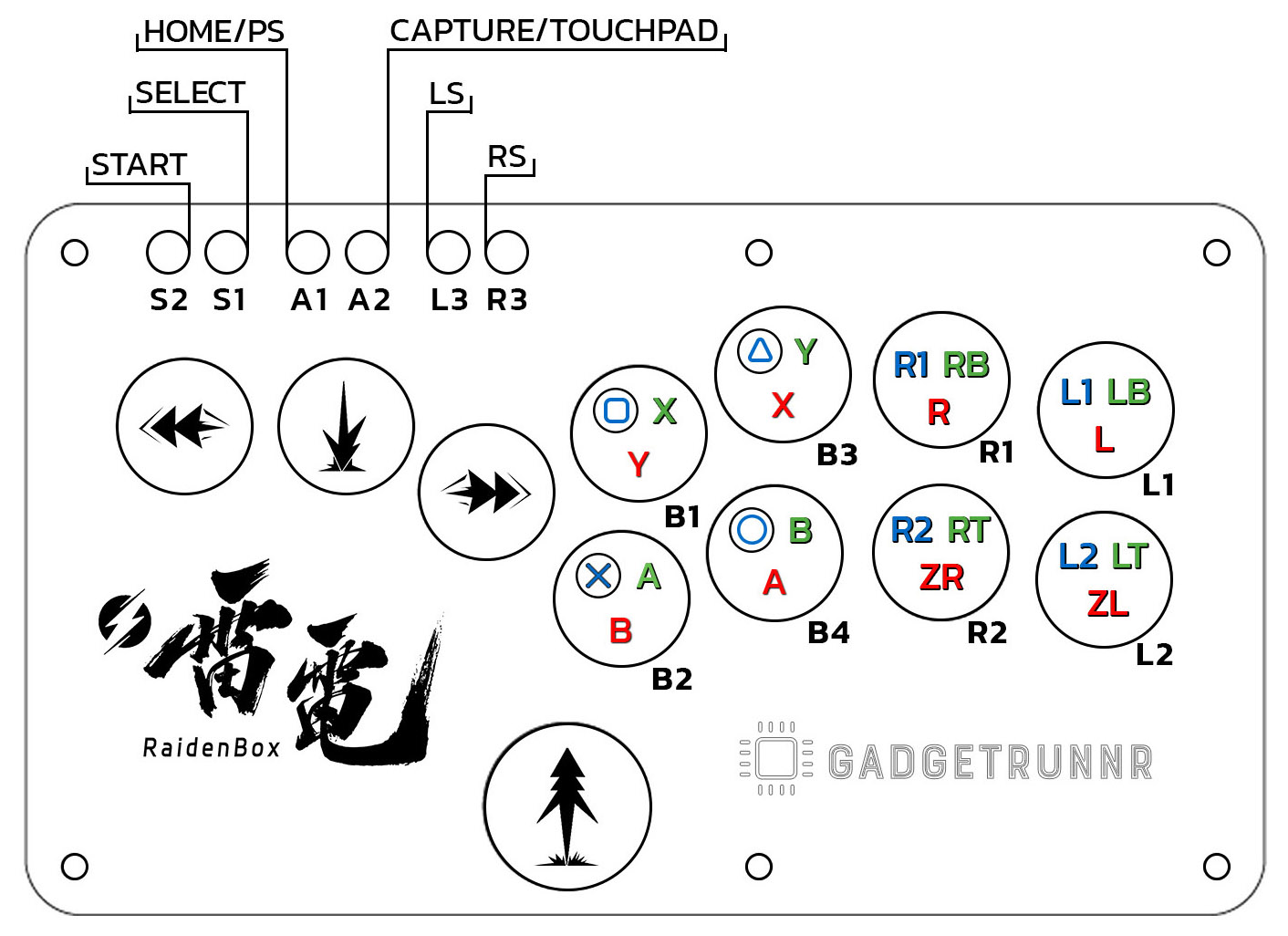
1.3 Holding S2 + S1 + Up while plugging in to your PC. (NOT PS5 or Mac).

1.4 If successful, a new removable drive named RPI-RP2 should appear in your file explorer.

1.5 Drag and drop the flash_nuke.utf file downloaded in step 1.1 into the removable drive.

1.6 Wait for RaidenBox to automatically disconnect and reconnect.

2Step 2 - Install New Firmware

2.1 If flash nuke was successful, a new removable drive named RPI-RP2 should appear in your file explorer.

2.2 Download the PC or PS5 firmware file from below and Drag and drop the firmware (.uf2 file) into the removable drive.

2.3 Wait for the RaidenBox to automatically disconnect and reconnect.

Firmware Downloads

PC VersionPS5 Version
RaidenBox PC 0.7.11RaidenBox PS5 0.7.11
RaidenBox PC 0.7.9RaidenBox PS5 0.7.9
RaidenBox PC 0.7.7RaidenBox PS5 0.7.7
RaidenBox PC 0.7.5RaidenBox PS5 0.7.5
  • Privacy Policy
  • Terms of Use
  • Online Manual
  • Support

© 2026 GadgetRunnr Inc.